Account Summary
Email, access state, and core dashboard metrics will live here.
A few drops into a run, you want to know what you've spent, what you've extracted and where you've been mining. EntropiaControl Mining brings your setup, recorded activity and TT result together while you play.
Search supported finders, finder enhancers, amps, excavators and excavator enhancers, inspect the results and apply your selection to the active mining setup.
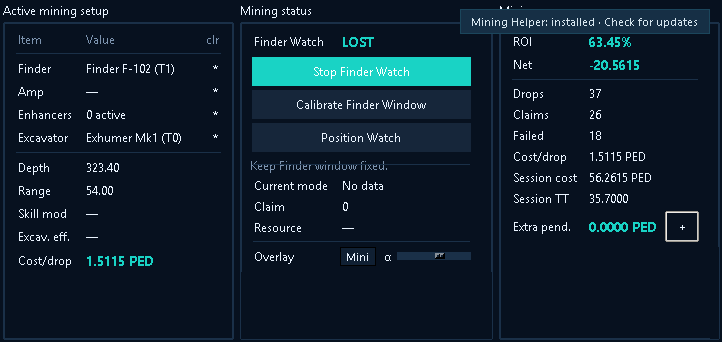
Choose the finder and excavator you're using, add an amp if you use one, and check the configured consumption. Mining uses those settings to work out the cost per drop and add known extraction costs as you mine. Keep them up to date when your equipment or consumption changes.
Finder Watch follows finder activity so Mining can record detected drops, claims and no-resource results. Calibrate it before you start, keep the finder panel visible and check the calibration again if you move it.
You can review the recorded Drops, Claims and Failed counts alongside the run's cost and return.
Cost shows the recorded run cost. TT shows the TT value of resources you've extracted and Mining has recorded. Net is TT minus Cost; ROI shows that TT return as a percentage of Cost. These figures use TT, without markup or proceeds from selling the resources.
Extra Expenses lets you manually add Mining costs not already included, such as consumed enhancers. You can also open it from Mining Mini. Entries stay pending until you confirm their inclusion in the run cost when closing the run.
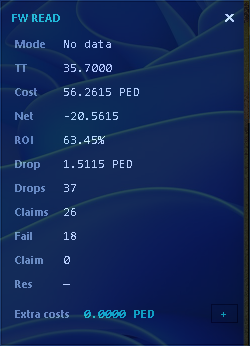
Mining Mini keeps Cost, TT, Net, ROI, the activity counts and Finder Watch status in a compact view while you play.
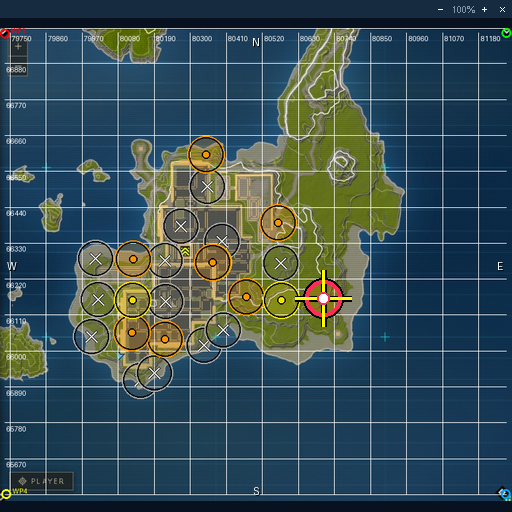
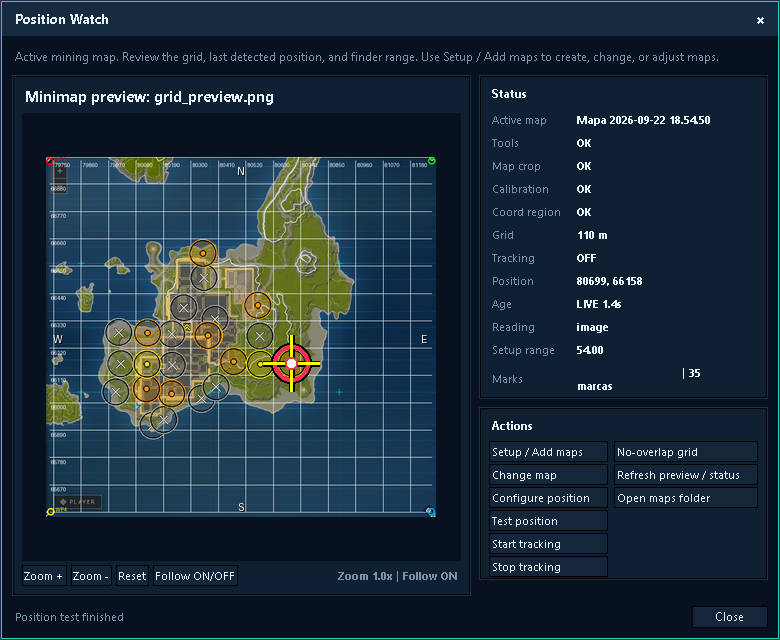
As you move through an area, Position Watch gives your run a place on the map. Review the recorded marks and the position shown to see where your mining activity took place. The grid and coverage circles use your finder range to help you review drop coverage and avoid accidental overlap.
Before using Position Watch, configure the map and calibrate your position. Recording new activity marks requires Finder Watch to be running and a valid current position.
The map gives you spatial context for what happened. It cannot predict deposits, tell you which spots will be better or promise a profitable run.
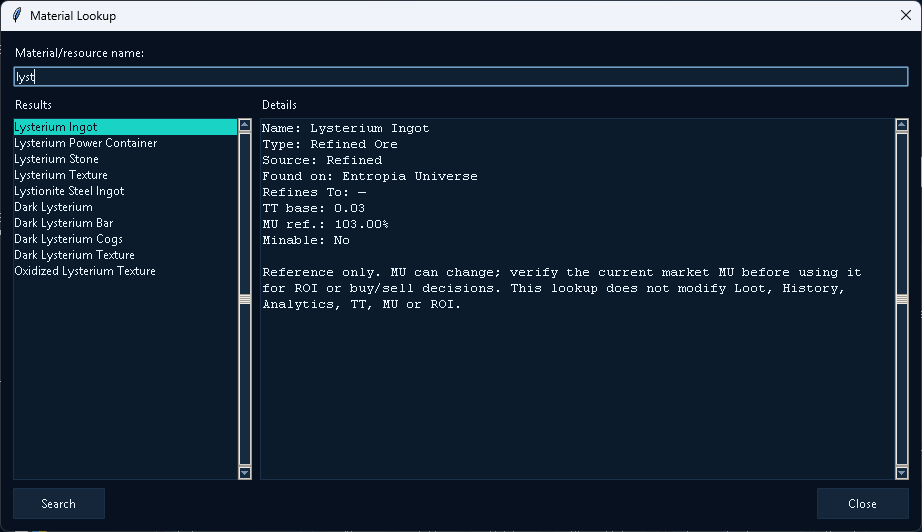
Use Material Lookup to search materials by full or partial name and review their type, source, refining details, reference location, base TT and reference MU. This is catalog information: reference MU does not change the run's TT economy or count as sale revenue. Prices are not live, and reference locations do not guarantee deposits.
After the run, review Mining's saved economic contribution in General within the shared History: Cost, TT, Net and ROI. If a run combines activities, General contains their combined economic totals, rather than a Mining-only breakdown.
USD 14.99 · One-time payment
Buy Mining once: permanent ownership is linked to the Pro license you select. Pro is sold separately, and that license must be active to use Mining.
If that Pro license expires, you keep Mining ownership. Access pauses until the same license is active again.